

Ever wanted to add that special touch to your Animal Crossing: New Horizons island? Maybe a unique path, a custom outfit, or even a quirky piece of furniture? Well, you’re in luck! Using ACNH custom design QR codes is a fantastic way to bring your wildest island dreams to life. It might sound a bit techy, but honestly, it’s pretty straightforward once you get the hang of it. This guide will walk you through everything you need to know about ACNH custom design QR codes, from making your own designs to sharing them with the world.
Key Takeaways
- ACNH custom design QR codes let you share your own pixel art designs for clothes, paths, and more within the game.
- You can create designs using the NookPhone’s design app or external tools, then convert them into QR codes.
- Making sure your QR codes are clear and have good contrast is important for easy scanning in Animal Crossing.
- Sharing your ACNH custom design QR codes allows other players to download and use your creations on their islands.
- Experimenting with different design ideas and sharing them can really boost your island’s unique style and connect you with other players.
Understanding ACNH Custom Design QR Codes
The Role of QR Codes in Animal Crossing: New Horizons
QR codes have become a surprisingly useful tool for players of Animal Crossing: New Horizons, especially when it comes to customising your island. Think of them as little digital doorways. You can use them to bring designs created by other players directly into your game. It’s a bit like having a shared sketchbook for your virtual world. This means you don’t have to be an artist yourself to have amazing custom outfits or patterns for your paths and buildings. You just need to scan the right code.
It’s interesting to see how QR codes are used in the real world too. For instance, organisations like Transport for London use them for asset tracking on public infrastructure, making sure everything is accounted for. Similarly, some UK businesses use durable QR code stickers to link equipment directly to digital maintenance instructions, which is pretty handy for keeping things running smoothly. It shows how versatile these little squares can be.
Navigating the World of Custom Designs
Animal Crossing lets you create your own patterns, but the in-game tools are quite basic. This is where the community steps in. Players design incredible things – from intricate clothing patterns to realistic brickwork for walls – and then share them using QR codes. The Nintendo Switch Online app is your gateway to this. You use its NookLink feature to scan these codes, which then imports the design into your game’s custom design app. It’s a straightforward process, but getting the hang of it is key to expanding your design options beyond what the game offers natively. You can find guides on how to use the Nintendo Switch Online app for this purpose here.
Why ACNH Custom Design QR Codes Matter
These QR codes are more than just a way to get cool designs; they’re a cornerstone of the game’s creative community. They allow for a level of personalisation that wouldn’t otherwise be possible. Imagine wanting a specific band t-shirt or a historically accurate pattern for your museum – QR codes make that achievable. It democratises design, letting anyone with a Switch and the app participate. It’s a bit like how businesses use QR code stickers to provide instant access to information or special offers; it bridges the gap between the physical (or in this case, the game’s interface) and a wider digital resource. For example, a recycling company might use sequential QR codes on bins to track collections, proving a simple system can manage complex logistics.
The ability to import custom designs via QR codes transforms Animal Crossing from a simple decorating game into a platform for user-generated art and expression. It connects players globally through shared creativity.
Creating Your Unique ACNH Designs
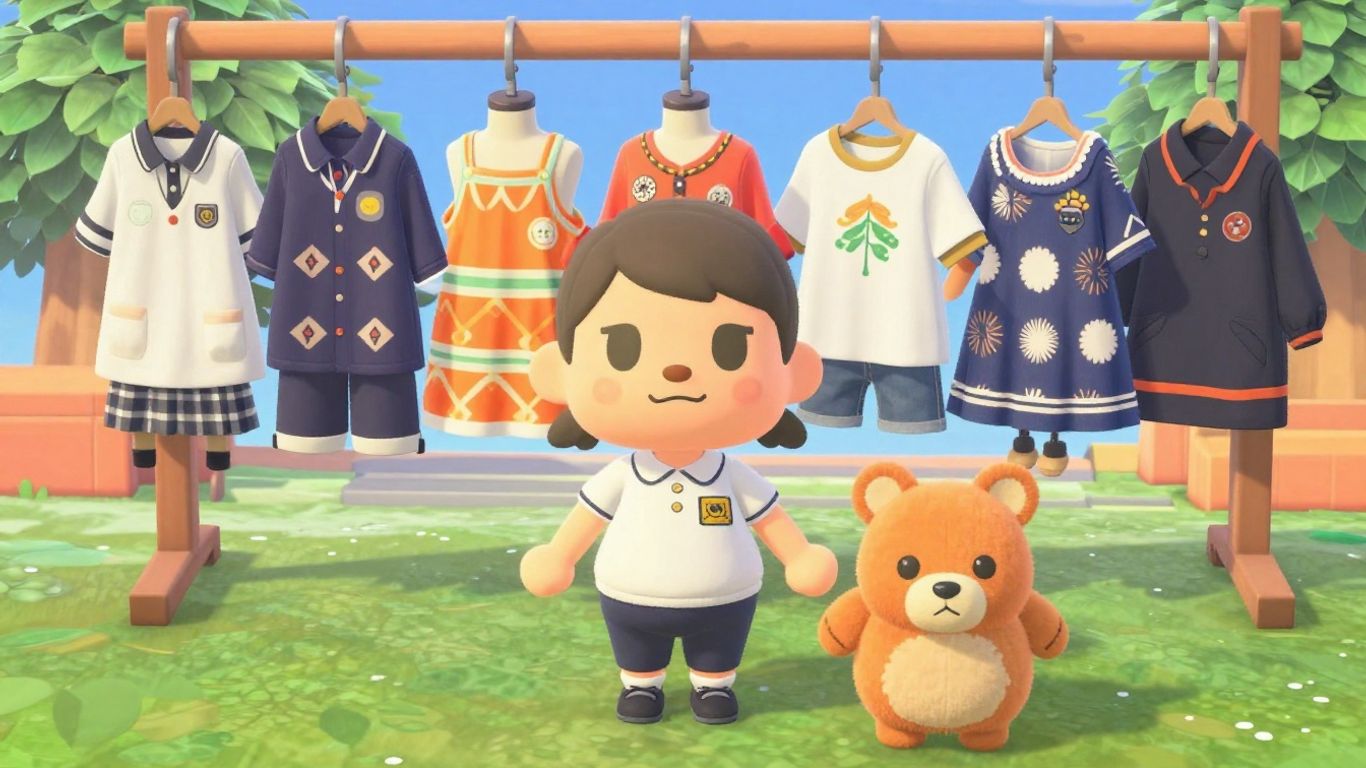
So, you’ve got a brilliant idea for a custom design in Animal Crossing: New Horizons. Maybe it’s a cosy knit pattern for a jumper, a weathered stone path for your island’s walkways, or even a quirky flag for your town hall. The good news is, bringing these ideas to life is more accessible than you might think. It all starts with understanding the tools you have and how to translate your vision into something the game can use.
From Concept to Canvas: Design Principles
Before you even pick up a virtual stylus, take a moment to sketch out your idea. Think about where this design will go. Is it a small detail on a piece of clothing, or a large pattern that will cover a whole path? This will influence how much detail you can include. Remember, ACNH designs are made up of a grid of pixels, so simplicity often works best. Think about colour palettes too – what colours are available in the game, and how will they look on different surfaces or clothing items?
It’s a bit like planning for a real-world project. For instance, many UK businesses use QR code stickers to label equipment. They need to be clear and easy to scan, so the design is kept simple, often just a black and white square. This ensures that no matter the lighting or angle, the QR code reliably links to the right information, much like how your ACNH designs need to be clear to be useful.
Utilising In-Game Tools Effectively
The Custom Designs app within the game is your primary tool. It offers a grid where you can colour in individual pixels. Don’t be afraid to experiment! Use the different brush sizes to fill in larger areas or add fine details. The eraser is your friend for correcting mistakes. Many players find it helpful to work from a reference image, either one you’ve drawn yourself or found online. You can even use the ‘transparent’ option for certain pixels to create see-through effects on clothing or flags.
Here’s a quick rundown of the tools:
- Pencil: For drawing individual pixels.
- Eraser: To remove pixels.
- Colour Picker: To select existing colours on your canvas.
- Fill Bucket: To colour a whole area with one click.
- Undo/Redo: To correct mistakes or go back a step.
Translating Designs into Scannable QR Codes
Once your design is complete in the game, you’ll want to share it. This is where QR codes come in. The game itself will generate these codes for you. When you save a design, you have the option to export it as a QR code. This process converts your pixel art into a scannable format that other players can use with their NookLink app or by visiting the Able Sisters’ Kiosk.
Think of it like generating a QR code sticker for a product. The sticker needs to be printed clearly so that a customer’s phone can read it easily. Similarly, the QR codes generated by ACNH are designed to be scanned by the game’s companion app or through the in-game kiosk. The better your design looks in the editor, the clearer the resulting QR code will be when scanned by others. This is why organisations often use durable, high-tack labels for asset tracking, ensuring the QR code remains readable even after wear and tear, just as your ACNH designs need to be clear to be shared effectively.
Optimising Your ACNH Custom Design QR Codes
So, you’ve poured your heart into a fantastic custom design for your Animal Crossing island. Now, you want to share it, and that means turning it into a QR code. But not all QR codes are created equal. To make sure your masterpiece is easily accessible and looks good when scanned, a bit of optimisation is key. Think of it like making sure your island is tidy before visitors arrive – you want everything to be just right.
Ensuring Scan Reliability and Clarity
First things first, the actual scannability of your QR code is paramount. If people can’t scan it, they can’t use your design. This is where a few simple rules come in handy. The most important thing is to have a good contrast between the dark and light parts of the code. Usually, this means dark colours on a light background. Avoid using very light colours like pale yellow or white for your main design elements if they’re going to be part of the QR code itself. It’s also worth remembering that the in-game tool generates the QR code for you, so you don’t have to worry about the complex patterns, but the principles still apply to how you might think about your design’s colours.
The Importance of Contrast and Quiet Zones
Contrast is your best friend when it comes to QR codes. A clear distinction between the ‘on’ and ‘off’ pixels makes it much easier for a scanner – or in this case, your Nintendo Switch – to read the information. Imagine trying to read a book with smudged ink; it’s a struggle. The same applies here. Beyond contrast, there’s the ‘quiet zone’. This is the blank space around the QR code. It’s like a little buffer that tells the scanner where the code begins and ends. Without it, the scanner can get confused. Most QR code generators automatically include this, but it’s good to be aware of it. For instance, organisations like Transport for London use durable, high-tack labels with clear quiet zones on their assets to ensure consistent tracking, proving how vital this blank space is for reliability.
Testing Your QR Codes Before Sharing
Before you shout about your amazing new design from the rooftops, give your QR code a quick test. The easiest way to do this is to use your phone’s camera or a QR code scanner app. Scan the code you’ve generated. Does it load the correct design preview? Does it happen quickly? If you’re sharing the QR code image itself, try scanning it from your computer screen. If it works on your device, it’s likely to work for others too. It’s a small step, but it can save a lot of frustration. Think of it like a quick check before sending out invitations – you want to make sure the address is correct. This is similar to how businesses use QR code stickers for asset tracking; they’ll often test a batch to make sure every single one scans correctly before deploying them across their inventory.
Sharing and Implementing Your Designs
Once you’ve perfected your custom designs and turned them into scannable QR codes, the next step is getting them out there and into your Animal Crossing: New Horizons game. This is where the fun really begins, as you can start to see your creations come to life on your island.
Distributing Your ACNH Custom Design QR Codes
Sharing your designs is straightforward. The most common method is to post the QR codes on social media platforms, fan forums, or dedicated ACNH design websites. Think of it like putting up a notice board in a town square where other players can see and take your work. You can also share them directly with friends. For example, a recycling company in the UK uses QR code stickers to track bins for government-subsidised collections, making a similar process of identification and tracking simple for their drivers. While your designs are for fun, the principle of easy distribution is the same. You want to make your QR codes accessible so others can easily scan them using their Nintendo Switch Online app or a QR code reader on their phone.
- Post on social media: Use hashtags like #ACNHQR or #ACNHDesigns.
- Share in online communities: Websites and forums dedicated to Animal Crossing are great places.
- Directly message friends: For private sharing or specific island collaborations.
- Create a simple webpage: If you have many designs, a personal blog or a free website builder can host them all.
Integrating Designs into Your Island
Getting the designs into your game is done via the Nintendo Switch Online app and the NookLink feature. Once scanned, you can save them to your custom design slots. From there, you can apply them to clothing, paths, furniture, and even terraformed areas. Imagine creating a custom path that looks like cobblestones or a unique pattern for your villagers’ homes. Many businesses use durable, high-tack QR code stickers to link equipment to digital instructions, and you can think of your QR codes as a way to ‘link’ your design ideas to your island’s aesthetic. For instance, a theme park used unique, variable QR codes on wallet cards to link visitors to private photo galleries, streamlining the purchase process. Your island can become a canvas for these digital creations.
Community Engagement Through Customisation
Sharing custom designs is a fantastic way to connect with the wider Animal Crossing community. Players often trade designs, collaborate on island themes, or even host design contests. It’s a way to show off your creativity and get inspiration from others. You might see a particular style you love and seek out the creator to see what else they’ve made. This collaborative spirit is a big part of what makes ACNH so engaging. Think about how organisations like Transport for London use QR codes for asset tracking on public infrastructure; it’s about creating a connected system. Similarly, your custom designs can help build a more connected and personalised island experience for everyone who visits.
The joy of ACNH customisation lies not just in creating, but in sharing and seeing those creations integrated into a vibrant, player-driven world. It’s a digital form of expression that connects players across the globe.
Advanced Techniques for ACNH Creators
Leveraging Dynamic QR Codes for Updates
While static QR codes are fine for designs you’re happy to leave as they are, sometimes you might want to update your creations. This is where dynamic QR codes come in. Think of them like a magic doorway; you can change what’s behind the door without having to replace the door itself. For example, if you’ve created a series of custom outfits and later decide to tweak the colours or add a new detail, a dynamic QR code linked to a cloud storage or a dedicated sharing page means you can update the content without your visitors needing new codes. This is a bit like how some UK organisations use durable, high-tack QR code stickers on equipment. If the operating instructions for a piece of machinery change, they can update the digital guide linked to the QR code sticker without having to physically replace every sticker on every machine. It’s a practical way to keep information current.
Branding Your Designs with Logos and Colours
Taking your custom designs a step further involves making them instantly recognisable. You can do this by incorporating your own personal logo or a specific colour palette into the QR code itself. Many QR code generators allow you to add a small logo in the centre or choose custom colours. However, it’s important to do this carefully. Too much customisation can make the QR code difficult to scan. Always ensure there’s enough contrast between the colours and that your logo doesn’t obscure too much of the code. Think of it like adding a signature to your artwork; it makes it unique but shouldn’t detract from the main piece. For instance, a company might use a specific shade of blue and their logo on QR code stickers for their products, making them stand out while still being easily scannable.
Exploring Sequential and Variable Data Codes
This is where things get really interesting, moving beyond simple sharing. Sequential QR codes are like numbered tickets – each one is unique and follows a predictable order (e.g., 001, 002, 003). Variable data codes, on the other hand, use random, unguessable codes. While you might not need these for sharing island designs directly, they’re fascinating for understanding how QR codes are used in more complex systems. For example, a theme park might use variable data QR codes on cards given to guests. Each card links to a private photo gallery, and the random code ensures privacy. Similarly, some UK businesses use sequential QR code stickers on assets, like fire doors, to track inspections. Each door gets a unique code, allowing for easy logging and compliance checks. It shows how QR codes can be more than just links; they can be keys to specific data sets.
Troubleshooting Common QR Code Issues
Even the best-laid plans can hit a snag, and QR codes are no exception. If your carefully crafted Animal Crossing custom design QR codes aren’t scanning as expected, don’t panic. Most issues are surprisingly simple to fix. Think of it like trying to get a clear photo on your phone – sometimes you just need to adjust the lighting or focus.
Addressing Scan Failures and Glare
This is probably the most common problem. You point your phone at the QR code, and… nothing. Several things could be at play here. First, check the basics: is the code clear and large enough? A tiny, blurry code is going to struggle. For instance, UK businesses often use durable, high-tack QR code stickers for asset tracking, and they make sure the size is appropriate for the item. If you’re printing your codes, aim for a minimum size of about 2cm x 2cm for handheld scanning. Glare is another big culprit. Shiny surfaces or bright lights can wash out the code, making it unreadable. Try adjusting the angle or lighting. If you’re displaying a QR code on a screen, increasing the brightness can help.
Here’s a quick checklist for scan failures:
- Contrast: Is it dark on a light background? Avoid light colours on light backgrounds, or dark on dark.
- Clarity: Is the code sharp and in focus? Blurry or pixelated codes won’t scan.
- Quiet Zone: Is there a clear, blank margin around the code? This is essential for scanners to identify the code’s boundaries.
- Glare/Lighting: Is there a bright reflection or is it too dark? Adjust your environment.
- Damage: Is the code physically damaged (torn, smudged)?
Resolving Link Not Opening Problems
So, your code scans, but the link doesn’t open, or it leads to an error page. This usually means the destination URL is the issue. It might be a typo in the original link, or the website itself might be down. For example, a recycling company in the UK uses sequential QR codes on bins for tracking collections; if the backend system for that data is offline, scanning the code won’t yield any results. If you’re using a dynamic QR code (one that can be updated), the platform you used to create it might be having issues, or your subscription might have lapsed. Always double-check the URL you entered when creating the code. If it’s a dynamic code, log in to the service you used and verify the destination link is still active and correct. Sometimes, simply re-generating the code with the correct, active link can solve the problem.
Ensuring Cross-Platform Compatibility
Occasionally, a QR code might scan perfectly on an iPhone but fail on an Android device, or vice-versa. This isn’t usually a problem with the code itself, but rather how different phone cameras and operating systems interpret them. Some older Android phones, for instance, might have less sophisticated built-in QR scanning capabilities. In these cases, suggesting users try a dedicated QR scanner app like Google Lens can often resolve the issue. For critical applications, like when a facilities management company uses QR code stickers to link equipment to digital instructions, they often test on a range of devices to avoid this. The best approach is always to test your QR codes on both major platforms before sharing them widely. This proactive step saves a lot of headaches down the line.
Putting It All Together
So, there you have it. We’ve gone through how to get those custom designs from your favourite creators into your game using QR codes. It’s not as complicated as it might seem at first, and honestly, it’s a really rewarding way to make your island feel truly unique. Remember to check the creator’s instructions, make sure your internet connection is stable when you’re downloading, and most importantly, have fun with it! There’s a whole world of creativity out there waiting to be added to your Animal Crossing experience.
Frequently Asked Questions
What exactly are ACNH custom design QR codes?
Think of them as secret codes that let you bring your own cool designs into Animal Crossing: New Horizons. You can make patterns for clothes, paths, or even artwork, and then turn them into a QR code. Other players can then scan this code using their phone or the Nintendo Switch Online app to get your design in their game. It’s like sharing your creations with the whole island community!
How do I turn my own drawings into a QR code for ACNH?
First, you’ll need to use the design tools within Animal Crossing itself to create your masterpiece. Once you’re happy with it, you can save it. Then, you’ll need a special app or website that can take your in-game design and convert it into a scannable QR code. Some tools might even let you upload a picture of your design and turn it into a code you can use in the game.
Can anyone scan my ACNH QR codes, or do they need a special app?
To get your custom designs into the game, players will need to use the Nintendo Switch Online mobile app on their phone. Within that app, there’s a special feature to scan QR codes that are linked to Animal Crossing: New Horizons. So, while they don’t need a separate app just for the QR codes, they do need the official Nintendo app set up.
What makes a good ACNH custom design QR code?
A good QR code is easy to scan! This means making sure your design has clear colours – usually dark on a light background works best. Also, try not to make the design too cluttered or small within the QR code itself. Testing your code before you share it is super important to make sure it works for everyone.
Can I use my own logo or brand colours in my ACNH designs?
Absolutely! When you’re creating your designs in ACNH, you can use any colours you like. If you want to add a small logo or specific brand colours, you can incorporate them into the design itself. Just remember that the QR code generator will turn your whole design into the code, so keep it clear for scanning.
What happens if my QR code doesn't scan properly in the game?
Don’t worry, it happens! The most common reasons are that the QR code might be too dark or too light, or there’s glare on the screen when you’re trying to scan it. Sometimes, the design inside the QR code is just too complex. Try making a new QR code with simpler colours and checking the lighting when you scan it.